
Disclosure: This article contains affiliate links. If you buy through our links, we may earn a commission at no extra cost to you.
What is Runway AI?

Runway AI review for 2025: this beginner-friendly guide explains what Runway is, how the Free plan works, and how to start with Image→Video, Text→Video, and Video→Video. If you’re new to AI video, this Runway AI review highlights the fastest way to test and learn, then points you to deeper guides.
Notable new models
Gen-3 Alpha — trained jointly on videos and images; it powers Text→Video, Image→Video and adds controls such as Motion Brush, Advanced Camera Controls, and Director Mode for finer control over structure, style, and motion. Runway
Gen-4 — emphasizes character/scene consistency across multiple shots using References (single reference image). Runway+1
Runway Free: how to start & what’s included
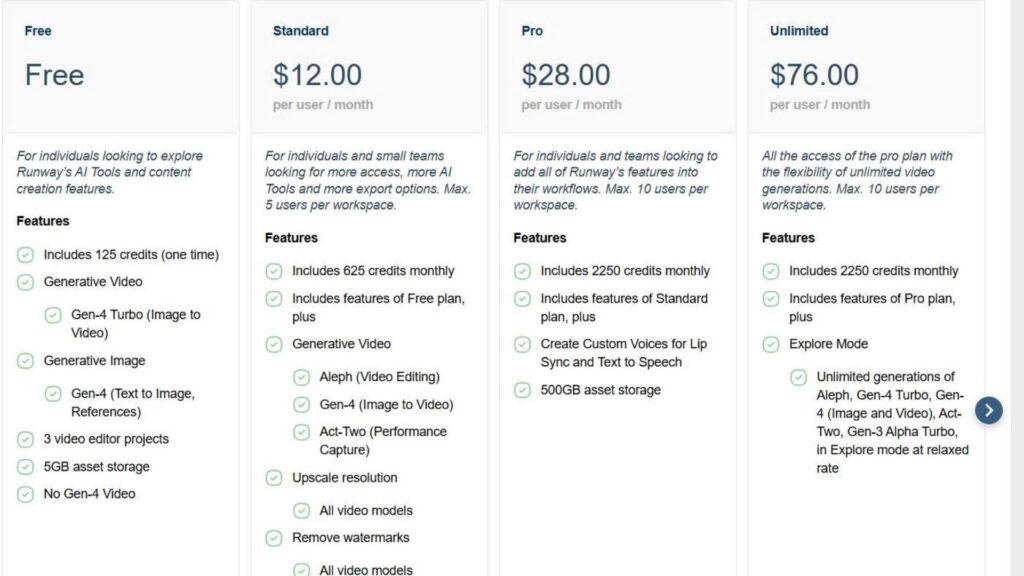
Free plan: $0, free forever, with a one-time 125 credits deposit; the pricing page notes 125 credits ≈ 25s of Gen-4 Turbo or Gen-3 Alpha Turbo. Runway
Help docs confirm Free = 125 one-time credits (do not expire). Paid tiers allocate monthly credits that reset on the billing cycle.
Quick How-To: 3 steps for beginners
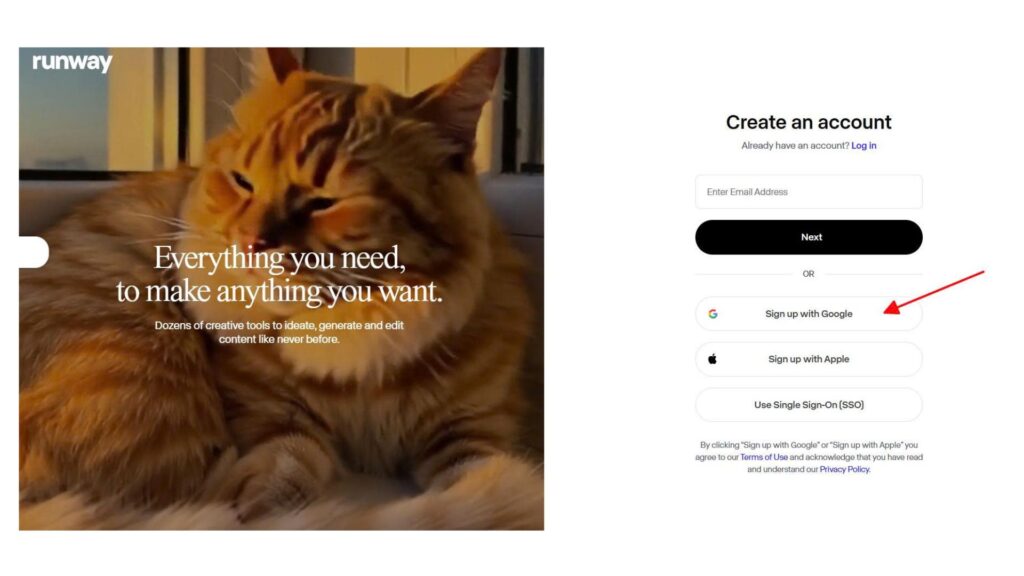
Step 1 — Create account & open the Dashboard
Sign up and create your first Workspace in the web app. Runway
Step 2 — Pick your tool
Choose Generate Video and select Gen-3 or Gen-4. For multi-shot/identity stability, enable References with Gen-4. Trợ Giúp Runway+1
Step 3 — Generate & export
Set duration/quality and Generate; download or fine-tune in the editor. (Official docs: Gen-4 generations commonly render short clips per run; see Guides/Prompting for details.)
The 3 most “traffic-friendly” features for newcomers
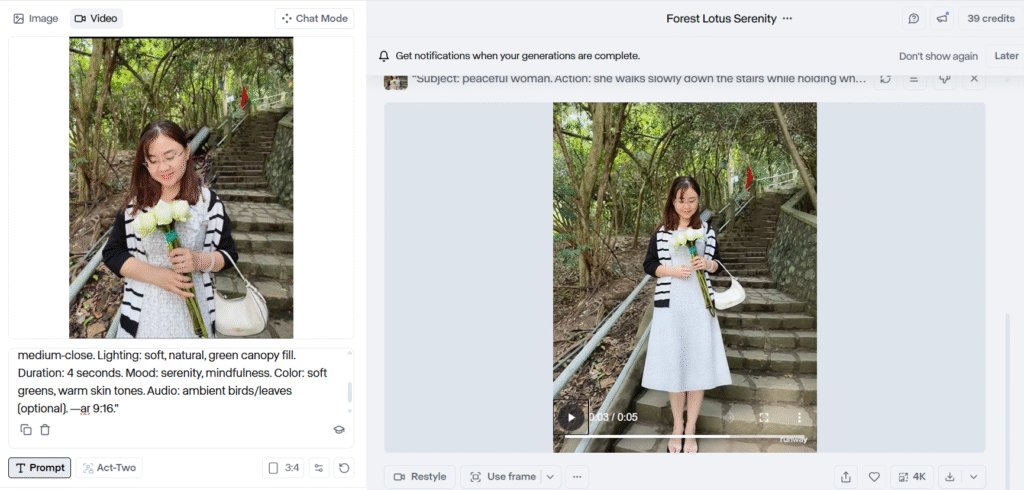
Upload a still, describe subject + action + style/camera, pick 5–10s, then generate. A great first try with Gen-3 Alpha (or Turbo)
Text → Video (high creative intent)
Write a prompt to produce a clip from text. Use Gen-3 to start; move to Gen-4 + References when you need consistent characters/locations across multiple shots. Runway+1
Prompt starter: Close-up of a paper boat on a rainy street, shallow depth of field, slow-motion droplets, soft cinematic lighting. (See the Prompting Guides for structures & keywords.)
Video → Video (restyle existing footage)
Upload a source clip and restyle with a prompt and settings like Structure transformation. Output matches input length up to 20 seconds; longer inputs use the first 20s.
Gen-3 vs Gen-4: which should you start with?
Gen-3 vs Gen-4: which should you start with?
Gen-3 Alpha / Turbo: fastest on-ramp for Text/Image→Video; Turbo is faster and lower-cost (available on all plans; Turbo requires an input image).
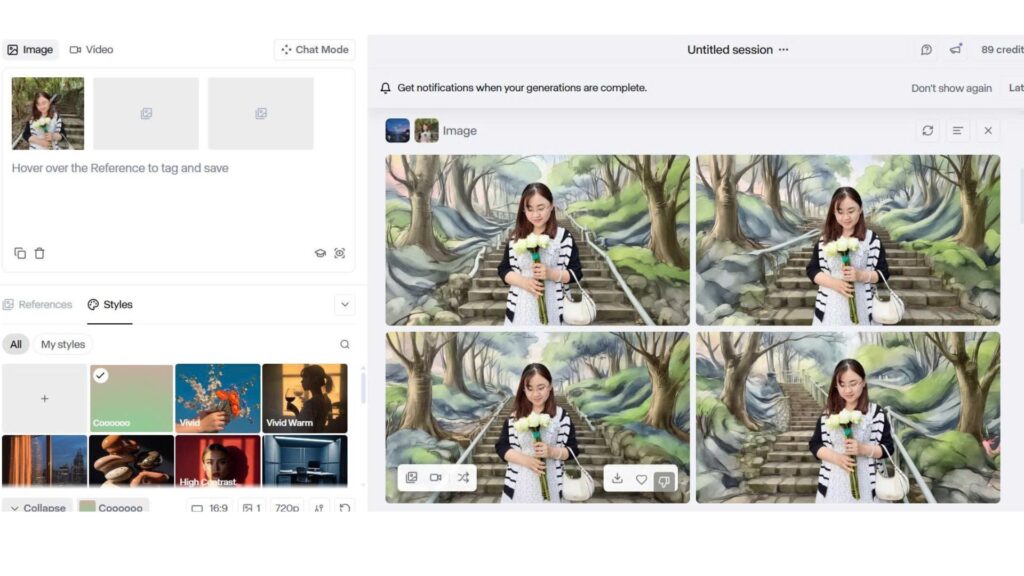
Gen-4 (+References): best when you need consistent characters/objects/locations across varied lighting and scenes with just one reference image
Inspiration & quick learning
Gen-4 References help center & academy walkthroughs (best practices, multi-shot consistency)
Use-case libraries and customer stories (e.g., applying Video→Video in real workflows)
Beginner Tips (Quick Wins)
Starting from the Free plan, focus on short clips (5–10s) to learn prompts and controls before upgrading. Keep prompts simple—subject + action + style/camera—and iterate. Use Image→Video to get results fast, then try Text→Video for new scenes. When you need the same character across shots, switch to Gen-4 with References. This Runway AI review also recommends adding internal navigation early (Free plan guide, Image→Video quick guide, and Comparisons) so readers can jump to the right depth. Finally, compress images, add descriptive ALT text, and place a clear disclosure above outbound CTAs to keep the page clean, fast, and compliant.
FAQ
Is Runway AI free?
Yes. The Free plan includes a one-time 125 credits deposit; paid tiers provide monthly credit allocations.
What’s Video→Video good for?
Restyling an existing clip with a prompt (and reference image if needed). Output length matches input up to 20s; longer inputs render the first 20s.
Which model should I start with?
Begin with Gen-3 Alpha/Turbo for speed and cost-efficiency. Move to Gen-4 + References when you need stable characters/locations across multiple shots.
Conclusion & internal navigation
Start on Free + Gen-3 for quick wins (Image→Video, Text→Video). When your stories need multi-shot continuity, switch to Gen-4 + References
Want the best tools right now? Explore our Top Picks